
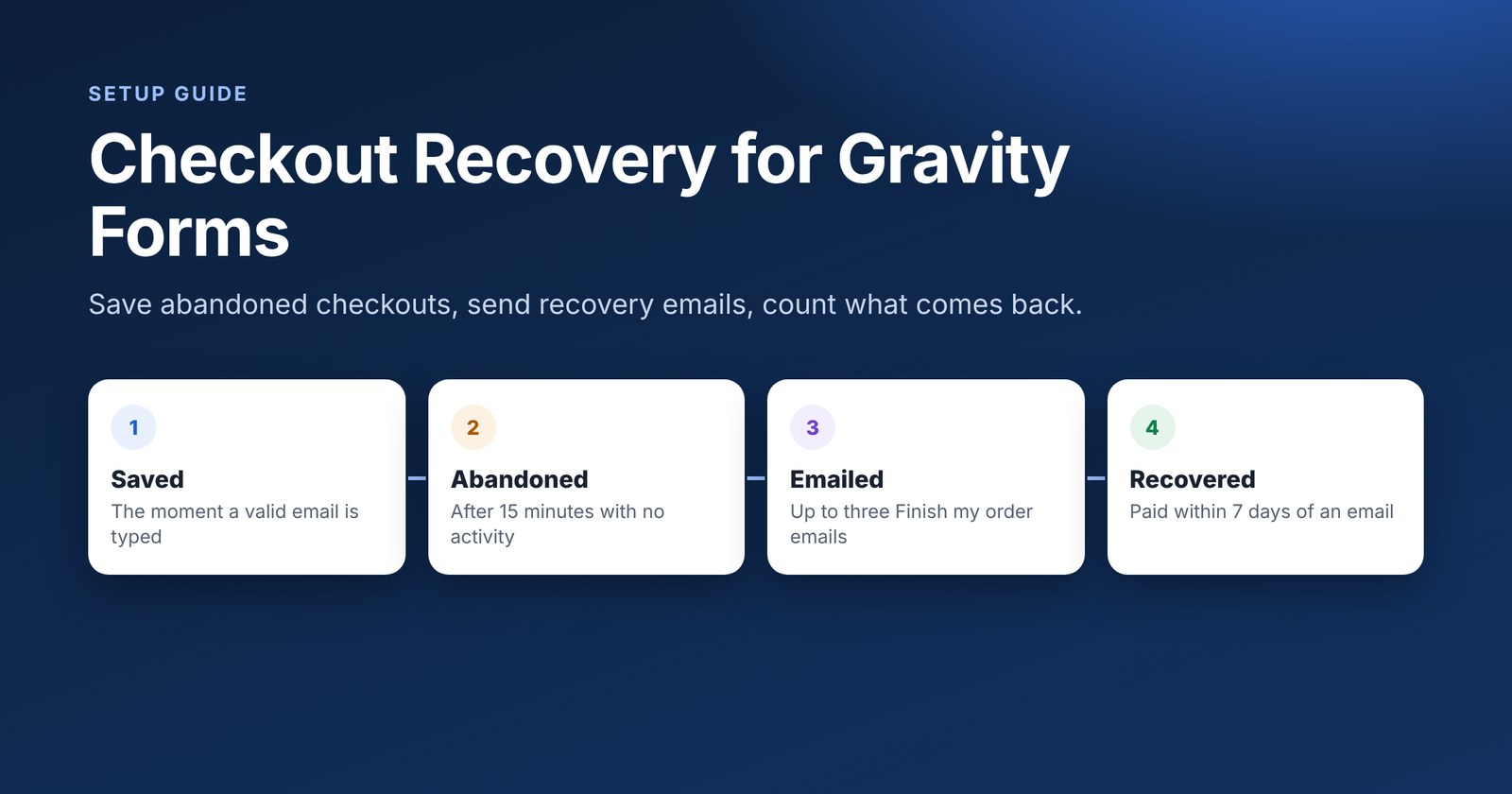
Checkout Recovery saves a Gravity Forms checkout as soon as the shopper types a valid email, sends them up to three emails with a link that puts their answers back in the form, and shows you how much money came back. This guide walks through setup, every setting, and what to check if something doesn’t work.
New to the plugin? The Checkout Recovery page has a hands-on walkthrough of a recovered sale.
On this page
- What you need
- Install and activate
- The setup checklist
- Choose which forms are saved
- Sender details and branding
- Timing
- Recovery emails
- Discount codes
- The exit popup
- The Live feed
- The dashboard
- How sales are counted
- Testing before you go live
- Privacy
- Troubleshooting
- For developers
What you need
- WordPress 6.0 or newer and PHP 7.4 or newer
- Gravity Forms 2.7 or newer
- A Gravity Forms payment add-on with an active feed on your form, such as Stripe, PayPal Checkout or Square
- For discount codes and the exit popup only: the Gravity Forms Coupons add-on (Elite license) and a Coupon field on the form
We also recommend a mail plugin such as Gravity SMTP, FluentSMTP or WP Mail SMTP, connected to a mail service. Recovery emails are sent through WordPress, and many hosts are poor at delivering email on their own.
Install and activate
- Download the plugin zip from your account on our site.
- In WordPress, go to Plugins > Add New Plugin > Upload Plugin, choose the zip and click Install Now.
- Click Activate.
- Go to Forms > Checkout Recovery. The dashboard opens with the setup checklist at the top.
Checkout Recovery has three places in the admin:
- Forms > Checkout Recovery: the Dashboard and the Live feed.
- Forms > Settings > Checkout Recovery: sender details, branding, timing, emails, discounts and the exit popup.
- Your form > Settings > Checkout Recovery: turn saving on or off for that form and pick its Email and Name fields.
The setup checklist
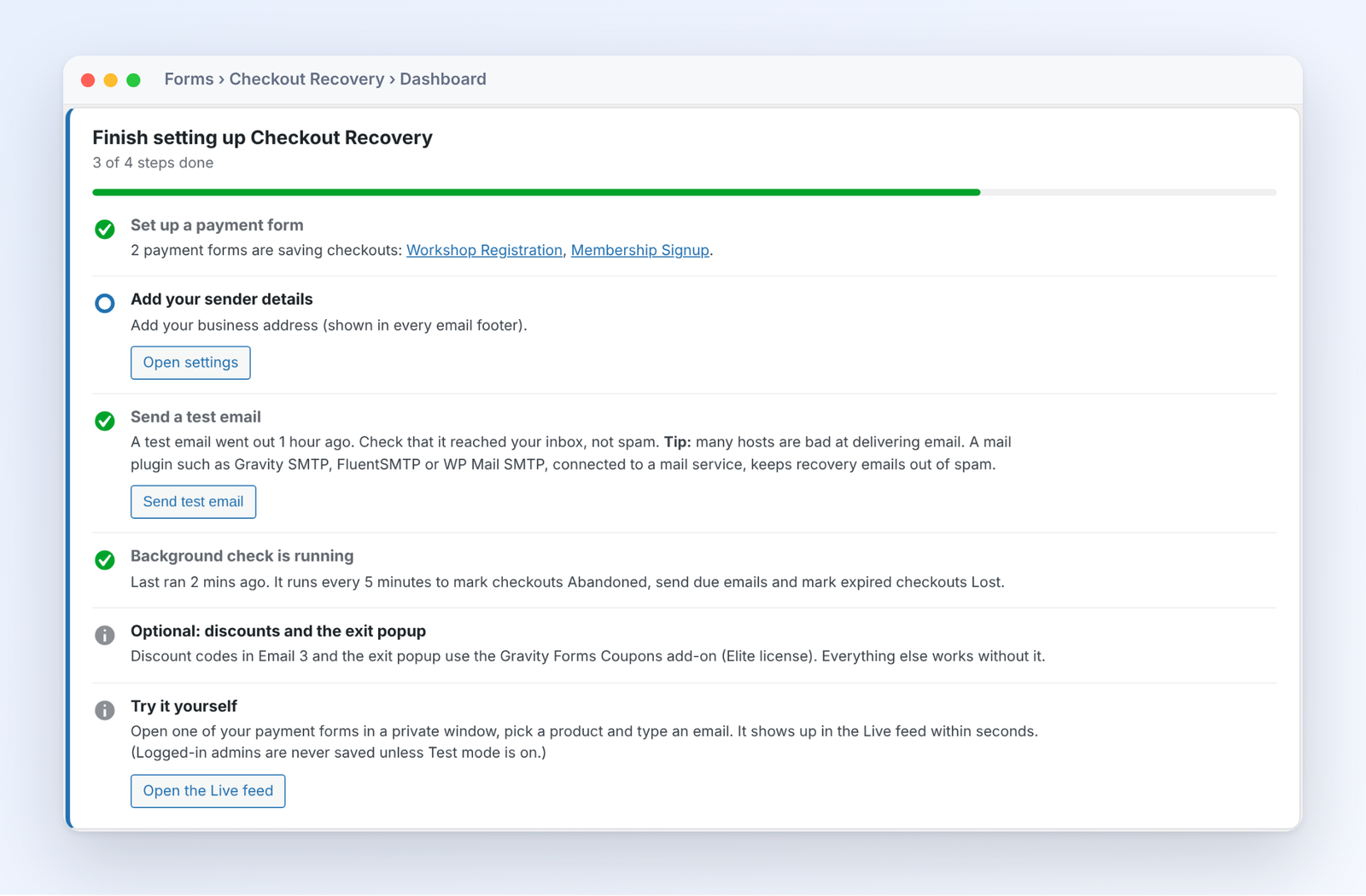
The checklist checks your setup for you and links straight to whatever needs doing. It has four steps, plus two optional ones:
- Set up a payment form. Lists the forms that are saving checkouts, or tells you what a form is missing.
- Add your sender details. A From email and your business address.
- Send a test email. Sends Email 1 to you so you can see it arrive.
- Background check is running. Confirms the task that marks checkouts Abandoned and sends emails is running every 5 minutes.
- Optional: discounts and the exit popup. Shows whether the Coupons add-on is active and how many of your forms have a Coupon field.
- Try it yourself. A reminder to fill in one of your forms in a private window and watch it appear in the Live feed.
Choose which forms are saved
Checkout Recovery works on payment forms. A form qualifies when it has:
- at least one Product field,
- an active feed from a Gravity Forms payment add-on, and
- an Email field.
Qualifying forms are switched on automatically. To change a form, open it and go to Settings > Checkout Recovery:
- Save abandoned checkouts on this form turns saving on or off.
- Email field is the field we watch. The checkout is saved once a valid email is typed here.
- Name field is used for the shopper’s name in the Live feed and in emails.
If a form doesn’t qualify, the same tab tells you why, for example “This form has no active payment feed”. Contact forms and other forms without a payment are left alone.
Leave a field out
Card fields, passwords, signatures, file uploads and CAPTCHA answers are never saved. To leave out any other field, open it in the form editor, go to the Advanced tab and tick Checkout Recovery: don’t save this field. That field won’t be saved or refilled.
The notice under the email field
Under Forms > Settings > Checkout Recovery > Capture you can show a short line under the email field on enabled forms. The default text is “We save your order so you can finish later.” and you can change it.
Sender details and branding
Go to Forms > Settings > Checkout Recovery.
Sender
- From name: defaults to your site name.
- From email: use an address on your own domain, such as orders@yourdomain.com. Addresses from free mail services are often sent to spam when they come from your website.
- Business address: shown in the footer of every email, next to the unsubscribe link.
Branding
- Logo and Logo width: a PNG or JPG works best. SVG logos don’t show in many email apps.
- Logo and header position: left or center.
- Header text: shown at the top when there is no logo.
- Footer text: a line of your own above the business address, such as your support email or phone. Web and email addresses become links.
- Button and accent color, Link color and Background color.
Tip: Click Send test email under any email to see your branding in a real inbox.
Timing
| Setting | Default | What it does |
|---|---|---|
| Abandon after (minutes) | 15 | A checkout becomes Abandoned after this long with no activity. 5 to 1440. |
| Attribution window (days) | 7 | A payment within this many days of the last recovery email counts as Recovered. After that the checkout is marked Lost. 1 to 90. |
| Keep data for (days) | 90 | Checkouts older than this are deleted. 7 to 3650. |
A background task runs every 5 minutes to mark checkouts Abandoned, send emails that are due and mark expired checkouts Lost. It uses Action Scheduler when it’s installed (WooCommerce includes it), or WP-Cron. WP-Cron only runs when someone visits your site, so on a quiet site ask your host to set up a real cron job for wp-cron.php. The checklist warns you if the task falls behind, and Run check now in the Live feed runs it on demand.
Recovery emails
There are three emails, each with its own delay, subject, message and button text. Delays are measured from the shopper’s last activity. The shortest delay is 15 minutes, and each email goes out at least 1 hour after the one before.
| Default delay | Default subject | |
|---|---|---|
| Email 1 | 15 minutes | You left something behind |
| Email 2 | 24 hours | Your order is still waiting |
| Email 3 | 72 hours | Here’s a little something to finish your order |
Emails stop as soon as the shopper pays, unsubscribes or the checkout is marked Lost. Turn off any email with Send this email.
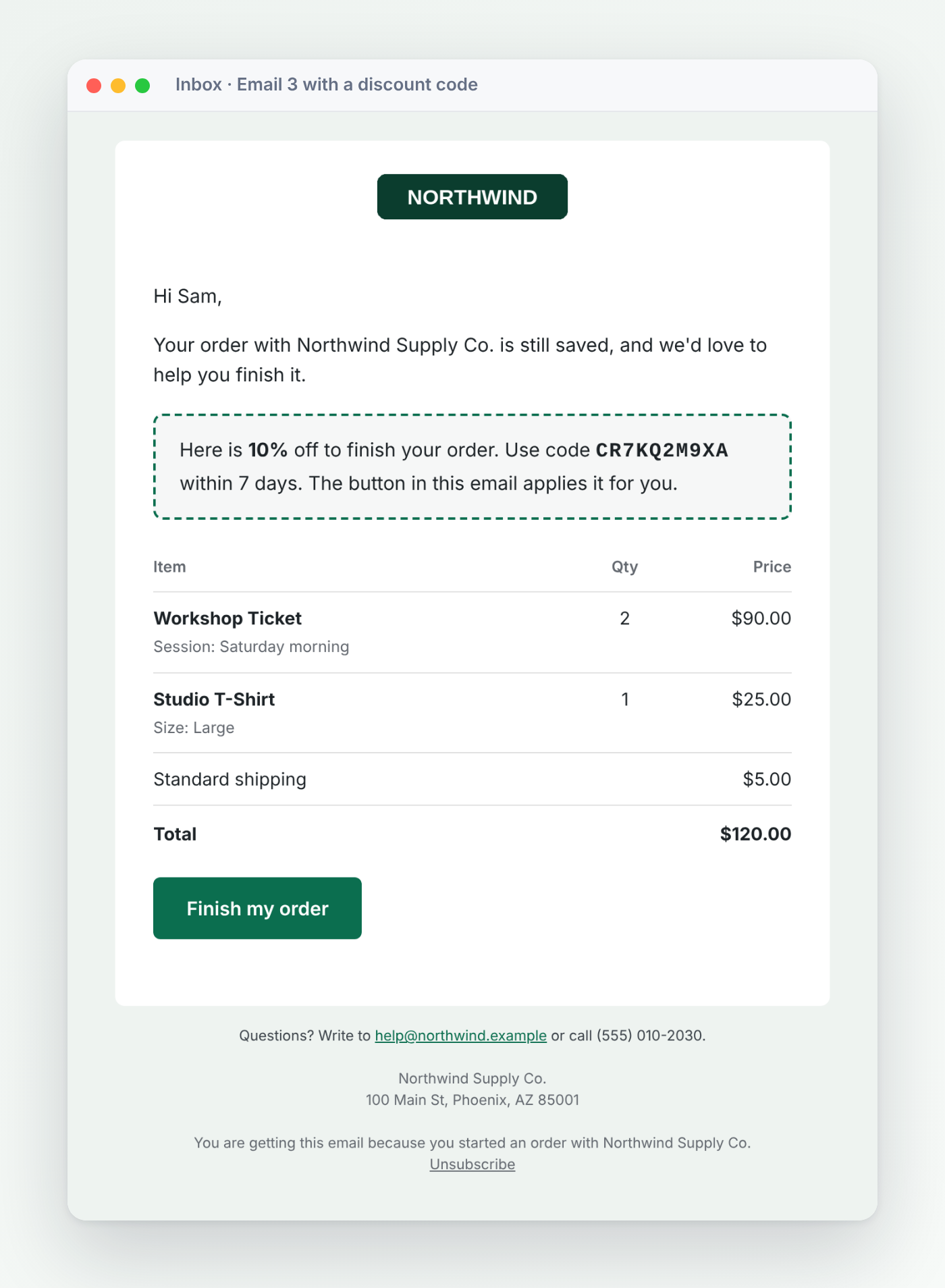
The Finish my order link
Every email has a private link that opens the form with the shopper’s answers filled in, including products, options and quantities. On multi-page forms it takes them to the page they reached. Card details are never saved, so the shopper enters their card again. If the checkout has already been paid or has expired, the link shows a short note instead.
Failed-payment email
When a card is declined, this email is sent in place of Email 1 (default: 30 minutes, subject “Your payment didn’t go through”, button “Try again”). Emails 2 and 3 follow as normal. Declines are detected for the official Stripe add-on.
Minimum cart total for emails
Checkouts below this total are still saved and shown in the Live feed, but get no emails. Leave it at 0 for no minimum.
Merge tags
| Merge tag | Shows |
|---|---|
| {cr_first_name} | The shopper’s first name (“there” when unknown) |
| {cr_email} | The shopper’s email |
| {cr_order_table} | Items, options, quantities, prices and total |
| {cr_total} | The order total |
| {cr_finish_button} | The Finish my order button |
| {cr_finish_link} | The Finish my order link as a plain URL |
| {cr_discount_block} | The discount box, only in the email that carries the discount |
| {cr_discount_code} | The discount code |
| {cr_discount_amount} | The discount amount, such as 10% |
| {cr_unsubscribe_link} | The unsubscribe URL (it is always in the footer too) |
| {cr_form_title} | The form title |
| {site_name} and {site_url} | Your site name and address |
Normal Gravity Forms field merge tags, such as {Phone:4}, work too.
Discount codes
Discounts are optional and off by default. They need the Gravity Forms Coupons add-on (Elite license) and a Coupon field on the form. Forms without a Coupon field get the email without a code.
Turn on Include a discount code under Discount codes, then set:
- Type: percent off or a fixed amount off.
- Amount: 10 by default.
- Which email carries it: Email 3 by default.
- Minimum cart total for a discount: carts below this total get the email without a code.
- Days valid: 7 by default.
Each checkout gets its own single-use code, created in the Coupons add-on and limited to that form. The Finish my order link applies it for the shopper, so they don’t have to type it.
The exit popup
A recovery email needs an email address. The exit popup catches shoppers who picked a product but are leaving before typing one, and offers a discount code in exchange for their email. When they enter it, the checkout is saved and the code is applied to their order.
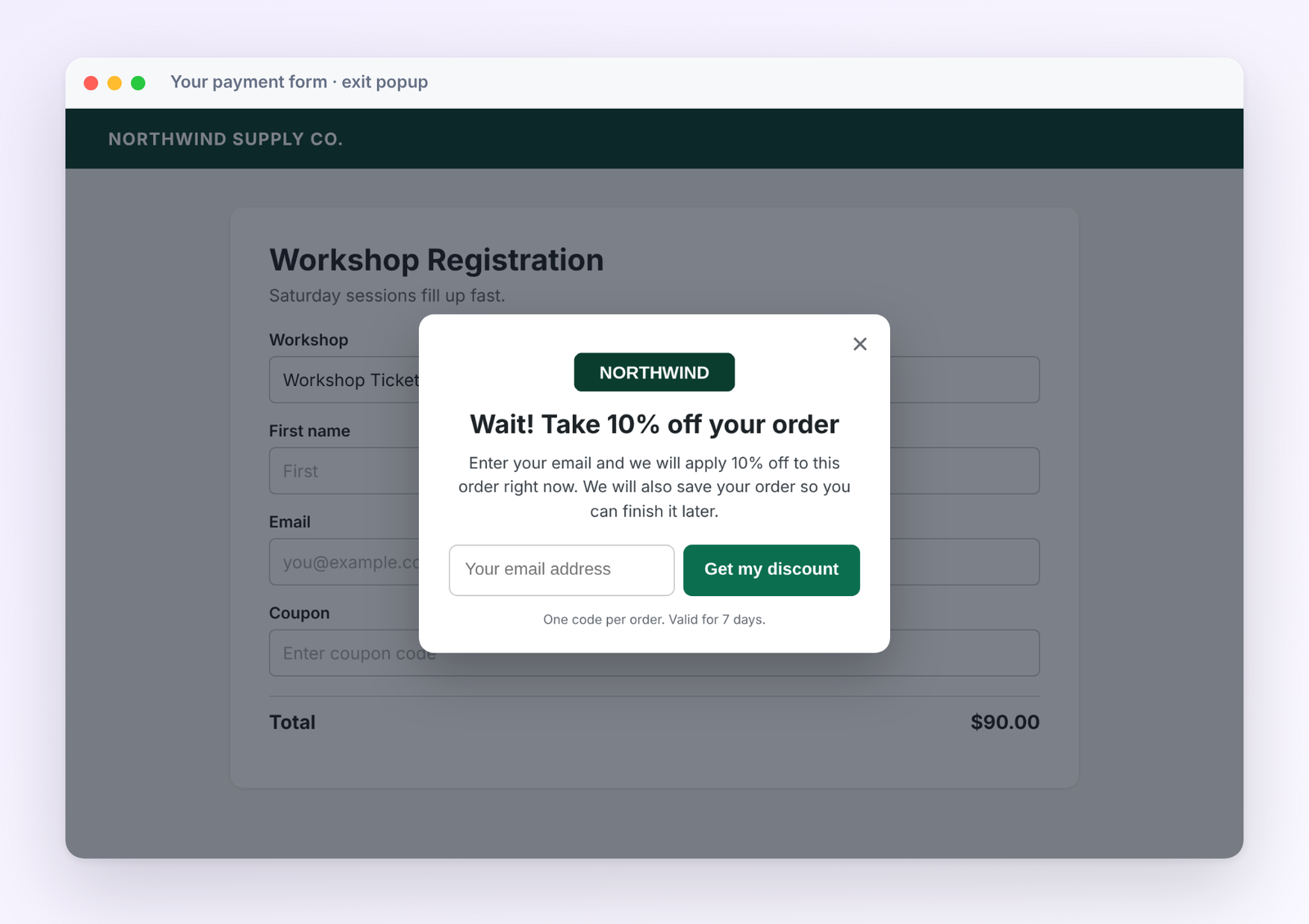
The popup shows only when all of these are true:
- it is turned on, the Coupons add-on is active and the form has a Coupon field,
- the shopper has picked a product but hasn’t typed an email,
- on a computer, the mouse heads out of the window; on a phone, the shopper has been idle for 30 seconds,
- the visitor hasn’t seen it in the last 7 days.
Settings, under Exit popup:
- Headline, Text and Button text. {amount} becomes the discount, such as 10%.
- Image: none, the same logo as your emails, or a different image, with a width setting.
- Discount type and Discount amount: separate from the email discount.
- Code valid for (days): 7 by default.
- Phones: show after (seconds of no activity): 30 by default. Set it to 0 to turn the popup off on phones.
- Show again after (days): 7 by default.
Popup codes are limited per IP address each day, so one visitor can’t collect a pile of codes.
The Live feed
Forms > Checkout Recovery > Live feed shows every saved checkout as a card on a board, and updates itself every 30 seconds.
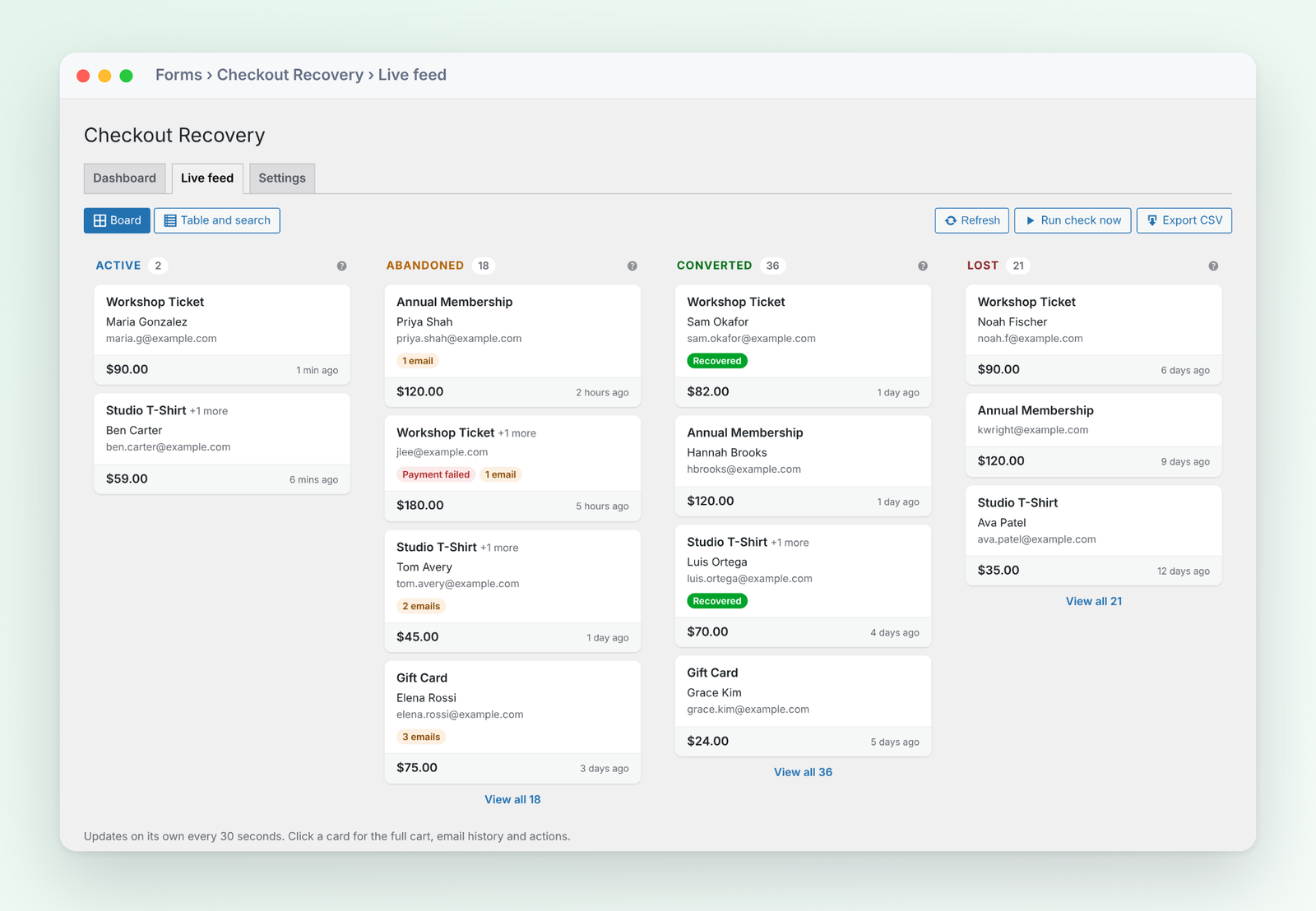
- Active: the shopper is still on the form, or was recently.
- Abandoned: no activity for the abandon time. Emails go out from here.
- Converted: paid, marked Recovered or Completed.
- Lost: no payment within the attribution window after the last email.
Click a card to see the cart, saved answers, emails sent, opens and clicks, and a timeline. From there you can copy the Finish my order link, Send next email now, Stop emails, Mark Lost or delete the checkout. Switch to Table and search to search by email or name, and use Export CSV to download your checkouts.
The dashboard
Forms > Checkout Recovery > Dashboard shows your results for the period you pick, compared with the period just before.
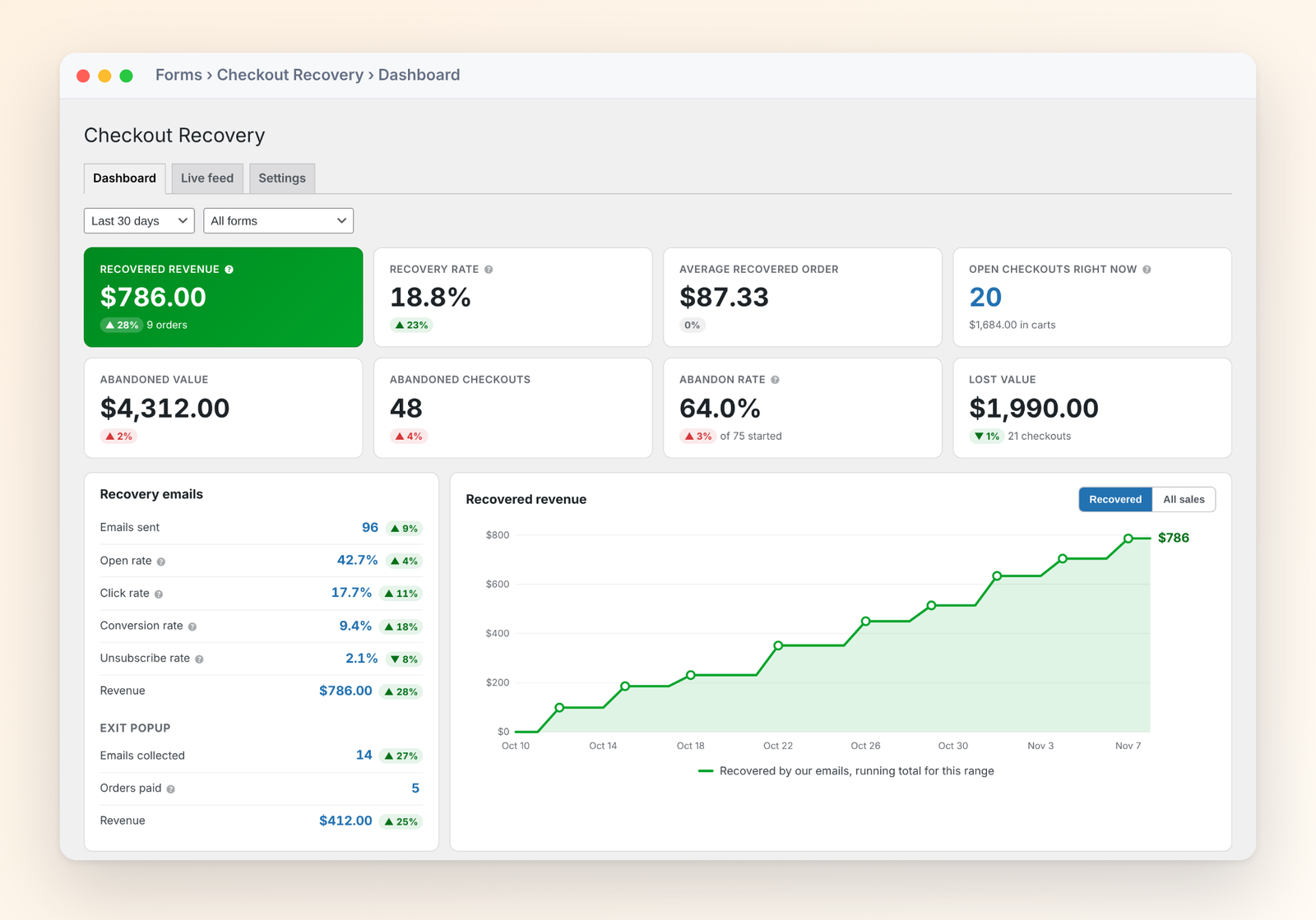
- Tiles: recovered revenue, recovery rate, average recovered order, open checkouts, abandoned value, abandoned checkouts, abandon rate and lost value.
- Recovery emails: sent, open rate, click rate, conversion rate, unsubscribe rate and revenue, plus the exit popup’s emails collected, orders paid and revenue.
- Chart: a running total of recovered revenue. Click All sales to see every payment on your enabled forms, split into recovered and paid on their own.
- Which email works, Most abandoned products and By form tables.
Test checkouts are left out of all numbers.
How sales are counted
| Status | Means |
|---|---|
| Recovered | Paid within the attribution window (7 days by default) after a recovery email was sent. The shopper doesn’t have to click the email. |
| Completed | Paid before any recovery email went out. Not counted as recovered. |
| Lost | No payment by the end of the attribution window after the last email. |
| Unsubscribed | The shopper used the unsubscribe link. No more emails go to that address. |
Payments are matched to the saved checkout through Gravity Forms’ payment events, so a shopper who pays never gets another reminder.
Testing before you go live
Logged-in administrators are never saved, so filling in your own form while logged in does nothing. Two ways to test:
- Send test email: under any email in the settings, or on the checklist. Sends that email to you with a sample order.
- Test mode: under Capture. Your own checkouts are saved, marked Test and left out of your stats, so you can run the whole flow on your own email address.
You can also open the form in a private window, where you aren’t logged in. Gravity Forms preview pages are never saved, so use the real page the form is on.
Tip: To see the emails sooner while testing, lower the Abandon after time and the Email 1 delay (15 minutes is the shortest), then click Run check now in the Live feed.
Privacy
- Card details, passwords, signatures, file uploads and CAPTCHA answers are never saved.
- Any other field can be left out with “don’t save this field”.
- Every email has an unsubscribe link and your business address. Unsubscribes are stored as a hash, not the email address.
- Saved checkouts appear in the WordPress personal data export and are removed by the erase tool, under Tools > Export Personal Data and Tools > Erase Personal Data.
- Saved checkouts are deleted after the Keep data for period, 90 days by default.
Checkout Recovery saves what shoppers type before they submit. Mention this in your privacy policy, and turn on the notice under the email field if you’d like shoppers to see it on the form.
Troubleshooting
A checkout doesn’t show up in the Live feed
- Are you logged in as an administrator? Test in a private window or turn on Test mode.
- Does the form qualify? Check its Checkout Recovery tab for the reason.
- Was a complete, valid email typed into the field picked as the Email field?
- Are you on a Gravity Forms preview page? Those are never saved.
Emails aren’t going out
- Check the Background check is running step on the checklist.
- Send a test email. If it doesn’t arrive, set up a mail plugin such as Gravity SMTP.
- Is the cart below the Minimum cart total for emails?
- Has the shopper unsubscribed, paid or been marked Lost?
The discount isn’t applied
- Is the Gravity Forms Coupons add-on active?
- Does the form have a Coupon field?
- Is the cart below the Minimum cart total for a discount?
The exit popup doesn’t show
- It needs the Coupons add-on and a Coupon field on the form.
- It only shows after a product is picked and before an email is typed.
- Each visitor sees it once every 7 days by default. Use a new private window to see it again, or turn on Test mode, which shows it once per page load.
- On phones it waits for 30 seconds of no activity, and doesn’t show at all if that setting is 0.
For developers
| Hook | Type | Use |
|---|---|---|
| gfcr_should_capture | Filter | Return false to stop saving on a form or for a visitor. Receives true, the form and a context array. |
| gfcr_excluded_field_types | Filter | The field types that are never saved. |
| gfcr_payment_addon_slugs | Filter | Which add-on slugs count as payment add-ons. |
| gfcr_rate_limit | Filter | Saves allowed per IP address in 10 minutes. Default 120. |
| gfcr_checkout_abandoned | Action | Runs when a checkout is marked Abandoned. Receives the checkout ID and row. |
| gfcr_checkout_recovered | Action | Runs when a checkout is recovered. Receives the checkout ID, the entry and the amount. |
Need help?
Reach us through our support page. If you don’t have Checkout Recovery yet, you can buy it here for $79.99 a year, for unlimited sites.